
Packet loss is game data that leaves your phone and never reaches the server, so the server has to guess what you did. It can feel worse than a high ping, because your moves vanish instead of showing up late. You know the signs: your character rubber-bands back three steps, your shots land on nothing, or the match drops you out of the lobby with no warning. It usually starts with your connection, not the game, and that is where the fix starts too.
Table of Contents
Why Packets Go Missing Before They Reach the Server
There are only a handful of real causes, and they split into two groups: trouble inside your home, and trouble out on the route to the game server. Knowing which group you are in saves you from buying a router you did not need.
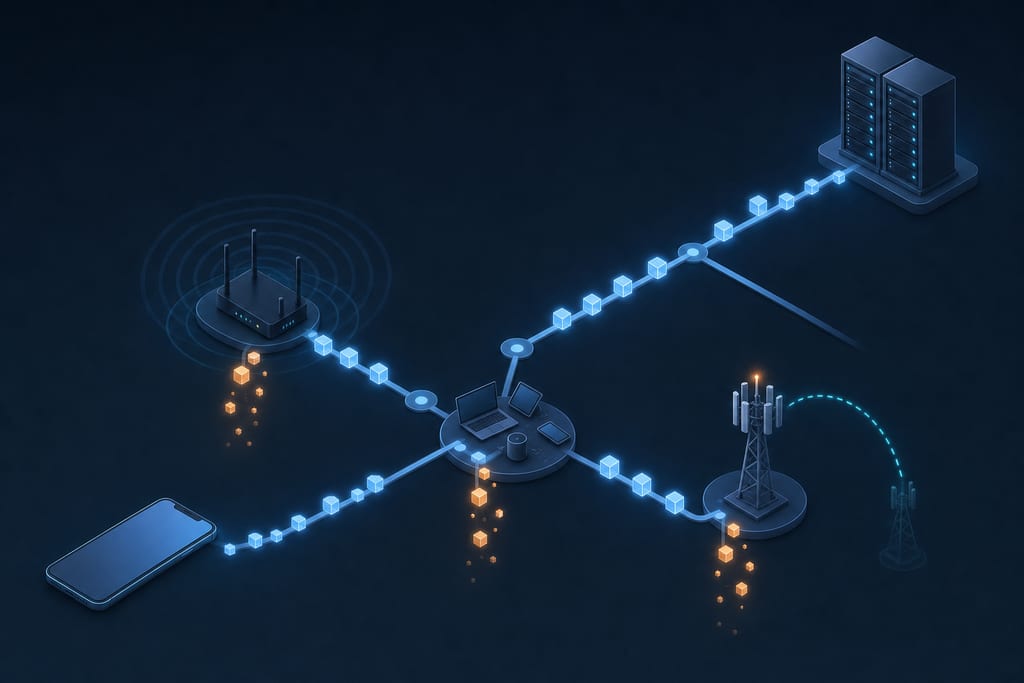
Inside the house, Wi-Fi interference is the usual suspect. Microwaves, a neighbour’s channel sitting on top of yours and thick plaster walls all knock frames out before they ever reach your modem. On a shared hotel, cafe or dorm network the problem is congestion instead: the router runs out of queue space and throws packets away, which is why gaming on public Wi-Fi feels so rough at night.
On cellular, loss spikes during handoff as your phone switches towers mid-match. And a single bad hop at your ISP or a peering point can drop traffic while your home network is spotless.
| Symptom | Likely cause | Where it sits |
|---|---|---|
| Loss only when others stream | Bandwidth contention | Home |
| Fine near router, bad in bedroom | Signal and interference | Home |
| Spikes while walking or driving | Tower handoff | Cell |
| Bad on one game, fine elsewhere | Peering or routing | Route |
Low ping and dropped packets are separate problems. A connection can show a low ping and still play broken if packets are being dropped along the way.
How to Spot Packet Loss on iPhone and Mac
On a Mac, open Terminal and run a ping. The command prints a packet loss percentage on the summary line when it finishes, which is the number you care about.
Run the test twice, in order, so you learn where the loss begins. If your router comes back clean and the public address does not, the problem is past your front door.
- Ping your router first, usually 192.168.1.1 or 192.168.0.1, for 50 packets.
- Ping a public address such as 1.1.1.1 for 50 packets and compare the two.
- Repeat on Wi-Fi and again on cellular with Wi-Fi switched off.
- On iPhone, turn on the in-game network stats overlay that most shooters and MOBAs include, or use a free Wi-Fi diagnostics app.
Test during the hours the problem actually happens. A hotel network at 9am tells you nothing about the same network at 10pm when every guest is streaming.
Write the numbers down with the time and the network name. Without a before and after, you cannot tell whether a change helped or you just got a quiet half hour.
Fixes That Actually Clear Up Dropped Packets
Start local, because the cheap fixes are the ones most likely to work. Four changes cover most home cases.
- Move within line of sight of the router, or cut the number of walls in between.
- Switch to the 5 GHz band, which is less crowded than 2.4 GHz in flats and dorms.
- Pause streams, cloud backups and console downloads while you play.
- Restart the router and check the admin page for a firmware update; aging gear drops packets under load.
Travelling changes the maths. A packed hotel Wi-Fi often performs worse than LTE or 5G, and if you do use cellular, stay in one spot so your phone is not handing off between towers mid-round.
This short walkthrough covers the same ground if you would rather watch someone do it.
If the loss starts outside your home, you cannot repair that hop, but you can sometimes route around it. A VPN sends your traffic along a different path, which is why whether a VPN lowers ping has a longer answer than yes or no, and GamingVPN runs on iPhone, iPad and Apple silicon Macs with no account needed, though results depend on your connection and the server you pick. It will not fix weak Wi-Fi or a failing router, so clear the local list first.
Pick the One Thing to Change Before Tonight’s Match
Tonight, before you queue up, run the ping test once at your usual play time and write down the loss percentage. That single number decides your next move. Clean at the router and ugly past it means your Wi-Fi is fine and the route is the problem, so try a different path out. Ugly at the router means stay home and fix the signal. Then change one thing, play one match, and run the same test again. If the number did not move, put the setting back and try the next one. Chasing five fixes at once tells you nothing.
More About Packet Loss
How much packet loss is normal before I should worry?
Every connection drops the odd packet now and then, and most games ride through small amounts of packet loss without you noticing. Worry when the loss shows up again at the same time of day, or when it climbs across repeat tests. A one-off spike is noise. A pattern is a fault.
Should I call my internet provider about packet loss, and what do I tell them?
Yes, once your tests show the loss starts past your own router. Give them the date, the clock time, the address you pinged and the loss percentage you recorded. Ask them to test the line to your gateway and check for errors on the local node. Note the ticket number.
Will packet loss or a VPN get me penalized in ranked matches?
Bad loss can disconnect you mid-match, and most ranked systems count a disconnect as a leave, with the game publisher deciding the penalty. Using a VPN for privacy is a separate matter, but routing to another region for easier matchmaking or cheaper stores can break a game’s rules. GamingVPN is not affiliated with any publisher.